What you’ll see
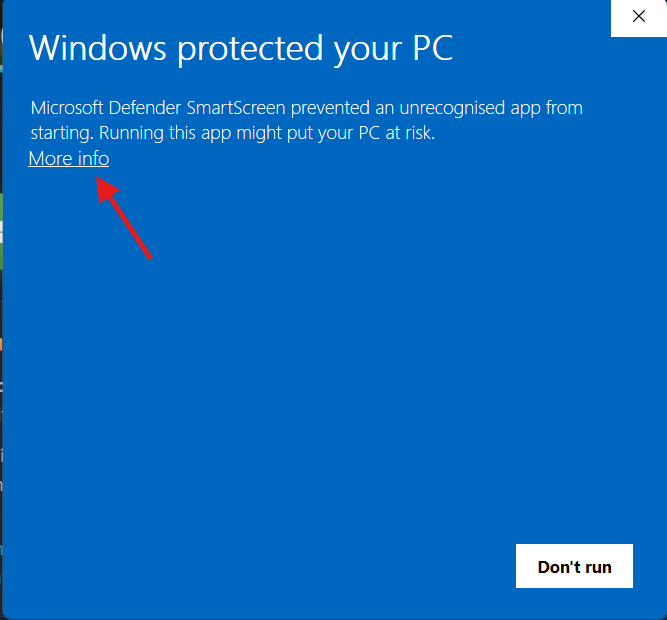
When you open the downloaded installer, Windows may show a blue screen that says “Windows protected your PC” and lists the Publisher: Unknown publisher. This happens when an app isn’t digitally signed yet, so SmartScreen can’t verify it automatically.
How to install anyway
Step 1: Start the installer
Open Downloads (or your browser’s downloads list).
Double-click the installer file (example: SudokuMaker-1.0.0-Windows.exe).
Step 2: Open the “More info” option
When the Windows protected your PC window appears, click More info.
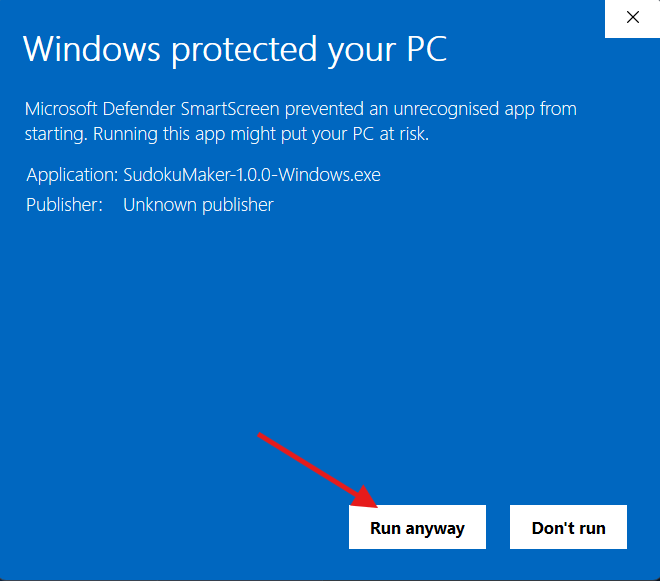
Step 3: Run the installer
After clicking More info, you’ll see an extra button called Run anyway.
Confirm the app name matches what you downloaded.
Click Run anyway.
Was this article helpful?
That’s Great!
Thank you for your feedback
Sorry! We couldn't be helpful
Thank you for your feedback
Feedback sent
We appreciate your effort and will try to fix the article